Best Cloud Backup for External Hard Drives: Top 5 Picks
BLUF: The best cloud backup for an external hard drive depends on how much data you store, how often the drive connects, and how much control you need over retention and encryption. Backblaze, IDrive, CrashPlan, Carbonite, and Arq each take a different approach, so the right choice depends on your backup workflow rather than brand popularity.
| Service | Best suited for | External drive support | Key strength |
|---|---|---|---|
| Backblaze | Simple personal backups | Yes | Automatic external-drive backup |
| IDrive | Multi-device households | Yes | Multiple-device backup and versioning |
| CrashPlan | Users wanting detailed backup control | Yes | Flexible file selection and backup management |
| Carbonite | Simple continuous backup workflows | Yes, with plan and platform limitations | Automatic cloud backup |
| Arq | Advanced users and privacy-focused workflows | Yes | Multiple destinations and strong encryption |
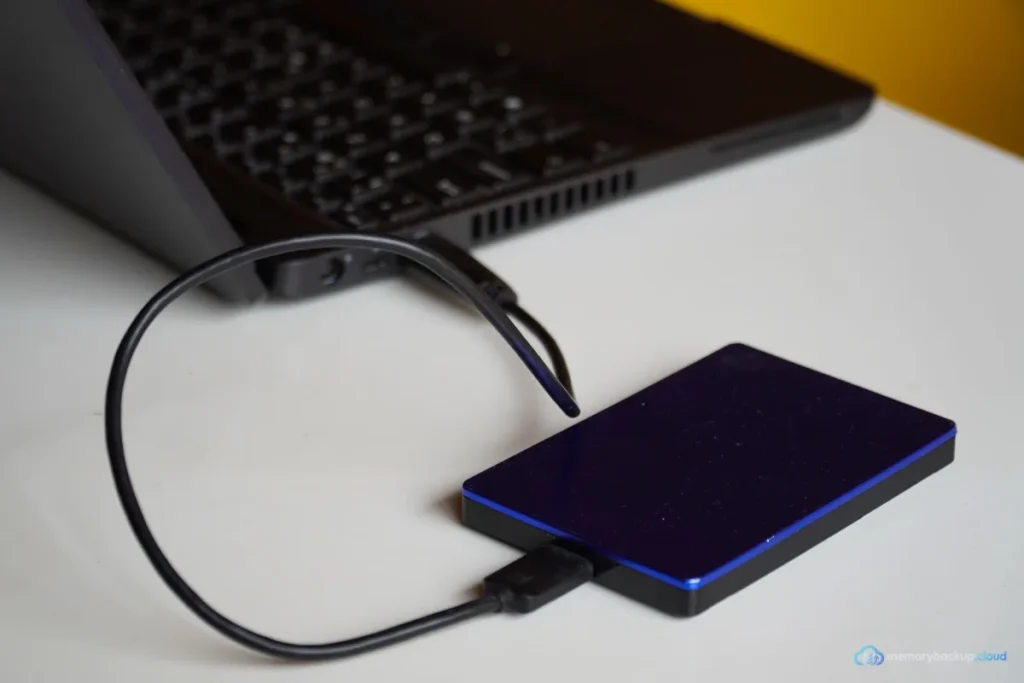
An external hard drive is useful for storing large photo libraries, videos, documents, project files, and archives. However, a second physical copy does not protect data from every type of failure. Theft, fire, flooding, accidental damage, or a failed storage device can affect multiple devices in the same location.
Cloud backup adds an off-site copy. That distinction matters when the external drive contains data that would be difficult or impossible to recreate. The goal is not simply to move files online. A useful backup system should also make recovery practical.
What Makes a Cloud Backup Service Suitable for External Drives?
A suitable service should support the external drive’s operating system and file system while maintaining a reliable backup when the drive reconnects. It should also provide clear retention, restore, encryption, and deletion behavior.
External-drive backup means copying files stored on a separately connected storage device to a remote backup system. It differs from ordinary cloud synchronization because the primary purpose is recovery rather than keeping identical working folders across devices.
First, check whether the service supports your type of drive. USB hard drives are common, but compatibility can differ for external SSDs, network shares, removable media, and particular file systems.
Next, consider connection frequency. Some services require the external drive to reconnect periodically. Others can retain previously backed-up data even while the drive remains disconnected.
Finally, examine recovery options. A backup that exists but takes excessive effort to locate, download, or reconstruct may not be practical during an actual data-loss event.
1. Backblaze: Best for a Straightforward External-Drive Workflow
Backblaze is a strong fit for users who want external hard drives included in an uncomplicated computer backup workflow. Its documentation states that directly connected external hard drives can be included in Computer Backup.
The service can automatically back up supported external drives connected to the computer. Supported connection types include USB, FireWire, and Thunderbolt, subject to the platform and drive requirements.
This approach reduces manual selection. Instead of repeatedly choosing individual folders, users can configure the backup and allow the service to handle the connected drive.
That simplicity is particularly useful for photographers, video editors, and home users with large libraries. The workflow can remain largely invisible once the initial configuration is complete.
However, automatic backup still depends on the drive being available to the computer. If a drive sits disconnected for long periods, newly created or changed files cannot be uploaded until the drive reconnects.
Backblaze also distinguishes backup from simply keeping another local copy. Its external-drive documentation emphasizes that a physical drive stored beside the computer remains exposed to many of the same physical risks.
For someone who wants cloud protection without designing a complicated backup architecture, Backblaze offers a relatively direct model. The main consideration is whether its drive and operating-system requirements match your setup.
2. IDrive: Best for Multiple Devices and Versioned Data
IDrive is designed around backing up multiple types of devices, while also supporting data stored on external hard drives. Its feature documentation lists external-drive backup alongside computers and mobile devices.
This makes it useful when an external drive is only one part of a broader backup environment. A household might have several computers, phones, and external storage devices that need protection under one account.
Another important feature is versioning. IDrive states that snapshots and versioning can preserve previous versions of backed-up files, providing a way to recover earlier states of data.
Version history matters because data loss is not always caused by hardware failure. A file can be accidentally overwritten, corrupted, or changed by malicious software. A single current copy cannot solve every one of those problems.
IDrive also provides a distinction between backup storage and its Cloud Drive synchronization feature. That distinction is useful because synchronization and backup serve different purposes.
Synchronization is primarily about keeping accessible files aligned between devices. Backup focuses on maintaining recoverable copies. Mixing those concepts can create false confidence about whether important files are actually protected.
For users with several devices and a substantial external-drive library, IDrive’s broader device coverage can make the backup architecture easier to manage. Still, users should verify current storage limits, retention rules, and plan conditions before subscribing.
3. CrashPlan: Best for Detailed Backup Control
CrashPlan is particularly relevant when users want explicit control over which external-drive data enters the backup set. Its current documentation explains that an attached external hard drive can be selected through the backup file-management interface.
The process allows the user to select the entire external drive or individual files and folders. That distinction is valuable when an external drive contains both critical data and temporary material.
CrashPlan also documents what happens when an external drive is disconnected. Previously backed-up files can remain protected while the drive is disconnected, provided another drive is not connected under the same name or path.
That behavior is important for removable archives. Some people connect an external drive only when importing photographs, completing a project, or performing periodic maintenance.
However, users should pay close attention to drive identity when replacing or renaming storage. CrashPlan’s documentation notes that connecting a replacement drive under the same name or drive letter can affect how the application interprets the files.
This makes CrashPlan a better fit for users willing to understand their backup configuration rather than simply enabling a default option.
It can also fit into a broader strategy that combines cloud backup with local destinations. That approach can be useful when restoring very large datasets over an internet connection would take too long.
4. Carbonite: Best for Familiar Automatic Backup
Carbonite provides cloud backup for compatible external hard drives, but support depends on the operating system, plan, drive format, and connection method. Those conditions should be checked before choosing it for an archive.
For Windows, Carbonite documents support for compatible external drives under certain plans. The drive must meet specific requirements, and the backup process involves selecting the external storage for protection.
On supported Mac configurations, Carbonite also provides external-drive backup. Its documentation describes requirements involving supported file systems and direct USB connections.
This makes Carbonite suitable for users who prefer a conventional automated backup experience. It can be particularly convenient when the external drive remains connected to the computer most of the time.
There is an important limitation, however. External-drive support is not identical across every Carbonite plan or platform. A user should therefore verify the exact plan requirements instead of assuming that every subscription includes the same drive capabilities.
Connection frequency also matters. Carbonite documents specific periods after which a disconnected external drive may be removed from the backup under certain configurations.
Consequently, Carbonite can work well for an actively used external drive, but it requires more attention when the drive functions as a rarely connected archive.
5. Arq: Best for Flexible Destinations and Greater Control
Arq takes a different approach from many conventional consumer backup services. It provides backup software that can send protected data to cloud accounts, attached disks, NAS devices, or Arq’s integrated cloud storage.
This flexibility makes Arq interesting for users who want to design their own backup architecture rather than depend on one storage destination.
Arq supports external drives and can create versioned backups. Its current product information also describes end-to-end encryption, compression, deduplication, block-level incremental backup, and multiple backup destinations.
Deduplication means identifying repeated data so the backup system does not need to store identical information unnecessarily. Incremental backup means subsequent backups focus on changed data rather than transferring everything again.
These mechanisms can matter when an external drive contains hundreds of gigabytes or more. Repeatedly transferring an entire archive would create unnecessary bandwidth usage and longer backup windows.
Arq also supports multiple destinations. A user could therefore maintain cloud protection while keeping another backup on a local disk or NAS.
The trade-off is complexity. Greater control usually requires more configuration decisions. Users must understand where backups are stored, how encryption credentials are protected, and how restoration will work if the original computer becomes unavailable.
For technically confident users, that control can be valuable. For someone seeking the simplest possible setup, a more automated service may require less ongoing management.
How to Choose the Right Cloud Backup for an External Hard Drive
The best choice starts with the data rather than the software. Identify what the external drive contains, how often it changes, and how difficult it would be to recreate.

- Measure the data volume. Determine how much storage is currently occupied and how quickly it grows.
- Check compatibility. Confirm support for your operating system, drive connection, and file system.
- Review connection habits. Decide whether the drive remains attached or is connected only occasionally.
- Study retention. Check how deleted and previous versions are handled.
- Examine restoration. Look for practical options for recovering individual files and large datasets.
- Evaluate encryption. Understand how data is protected during transfer and storage.
- Consider bandwidth. Large first-time uploads can take substantial time on ordinary internet connections.
Most importantly, do not select a service solely because it advertises unlimited storage. Storage capacity is only one part of a usable backup system.
Cloud Backup vs. Keeping a Second External Hard Drive
A second external drive and a cloud backup solve different parts of the same problem. A local copy can provide fast recovery, while cloud storage provides geographic separation from the original hardware.
For example, suppose a photographer stores five years of images on an external drive. A second drive kept beside it protects against some drive failures, but not necessarily against theft or a building-level disaster.
A cloud copy addresses that geographic risk. However, restoring a very large archive from the cloud may take longer than copying the data from a nearby drive.
For that reason, a layered strategy can be more practical than choosing between local and cloud backup. A local copy can provide speed, while a remote copy provides additional resilience.
The underlying principle is simple: backup copies should not depend entirely on the same device, location, or failure condition.
How to Back Up an External Hard Drive to the Cloud
The basic process is straightforward: connect the external drive, configure the backup application, select the required files, and allow the initial upload to complete.
- Connect the drive directly. Avoid compatibility problems by following the backup provider’s supported connection requirements.
- Install the backup software. Use the provider’s current application for your operating system.
- Select the external drive. Some services detect it automatically, while others require manual selection.
- Review exclusions. Make sure important photos, videos, archives, and project files are included.
- Start the initial backup. Keep the computer awake and connected to the internet as needed.
- Verify the backup. Check that representative files appear in the recovery interface.
- Test restoration. Restore a small selection before depending on the backup for disaster recovery.
The verification step is frequently overlooked. A backup should not be considered reliable simply because an application reports that files were uploaded.
How Often Should an External Drive Connect?
The ideal connection schedule depends on how frequently the data changes. A working drive containing daily projects should connect regularly, while a cold archive may follow a different schedule.
More frequent connection means less time between changes and their cloud protection. If the drive remains disconnected, newly added files cannot be uploaded.
Users with removable drives should therefore create a simple routine. For example, reconnect the drive after importing a new photo batch or completing a major project.
Services differ in how they handle disconnected drives. Some retain previously backed-up data, while others apply specific rules after a prolonged absence. Those policies should be checked before adopting a long-term archive workflow.
How Much Cloud Storage Do You Need?
Start with the amount of data currently stored on the external drive, then account for expected growth and any required versions. A drive that is 2 TB today may need substantially more backup capacity over several years.
Do not calculate storage requirements using only the files you currently consider important. Temporary files can usually be excluded, but important historical versions may require additional space or retention.
For example, a 2 TB photography archive may require more than 2 TB of effective backup capacity if the workflow produces frequent revisions and historical versions.
The exact requirement depends on the service’s retention model. Some providers manage historical versions differently from others, so advertised storage limits should always be interpreted alongside retention policies.
Security and Privacy Considerations
Cloud backup moves sensitive information outside your physical environment, so security deserves the same attention as capacity and price.
Look for encryption during transfer and storage, strong account authentication, and a recovery process that does not unnecessarily expose your data.
Encryption keys deserve particular attention. With systems that allow user-controlled encryption, losing the required password or key can make recovery impossible. A secure backup therefore needs secure credential management as well.
Also protect the account itself. A strong unique password and available multi-factor authentication can reduce the risk of unauthorized access.
Finally, remember that backup does not automatically prevent every security problem. If malicious software encrypts local files, a useful backup requires historical or unaffected versions that can be restored.
Common Mistakes When Backing Up External Drives
Assuming the drive is always protected: A disconnected drive cannot upload newly changed data.
Ignoring file-system restrictions: Some services support only particular formats or connection types.
Never testing restoration: A successful upload does not prove that your recovery workflow works.
Keeping every copy together: Local copies can share the same physical risks when stored in one location.
Forgetting old versions: Current-file backup alone may not help after accidental deletion or corruption.
Choosing based only on storage size: Retention, compatibility, encryption, and recovery options can matter just as much.
What Is the Most Practical Backup Strategy?
A practical strategy combines automation with deliberate verification. The backup application should handle routine copying, while the user periodically checks coverage and restoration.
For frequently connected drives, automatic services can reduce the chance of forgetting a backup. For rarely connected archives, a service with strong retention behavior may be more appropriate.
Large collections can benefit from keeping a local recovery copy as well. This can reduce dependence on internet restoration when a complete archive must be recovered quickly.
The broader principle is often called the 3-2-1 backup approach: maintain multiple copies, use more than one type of storage, and keep at least one copy away from the primary location.
Not every personal setup needs to follow that principle rigidly. However, it provides a useful framework for identifying single points of failure.
FAQ
Can cloud backup protect files stored on an external hard drive?
Yes. Several cloud backup services support files stored on directly connected external hard drives. The exact support depends on the provider, operating system, drive format, and subscription. Always confirm compatibility and connection requirements before starting a large backup.
Is cloud backup better than a second external hard drive?
Neither replaces the other in every situation. A second external drive can provide fast local recovery, while cloud backup provides an off-site copy. Using both can reduce different risks, especially when the external drives are kept in separate physical locations.
What happens when an external hard drive is disconnected?
Previously uploaded data may remain protected, but newly created or modified files cannot be backed up until the drive reconnects. Each provider applies its own retention and disconnected-drive policies, so users with rarely connected archives should check those rules carefully.
How long does the first cloud backup take?
The first backup can take considerably longer than later backups because the service must upload the existing dataset. The duration depends on data size, upload bandwidth, computer performance, and the provider’s infrastructure. Large archives may require extended periods before the initial backup completes.
Should I test my cloud backup before trusting it?
Yes. A restoration test confirms that the files are available and that you understand the recovery process. Start with several representative files, then consider testing a larger folder. Regular verification is especially important for irreplaceable photographs, business records, and long-term archives.
Final Takeaway
The Best Cloud Backup for External Hard Drives: Top 5 Picks depends on the way your storage actually works. Backblaze emphasizes simplicity, IDrive supports broader multi-device workflows, CrashPlan provides detailed control, Carbonite offers familiar automated backup, and Arq emphasizes flexible destinations and privacy controls.
The most important decision is not simply which service has the largest storage allowance. Instead, match the service to your drive format, connection habits, retention needs, recovery expectations, and security requirements.
For valuable external-drive data, the strongest workflow is usually one that remains understandable months after setup. Automate routine backups, keep an additional recovery option when practical, and periodically verify that important files can actually be restored.
Cloud backup is most useful when it quietly protects data before a problem occurs. A carefully configured external-drive backup can turn an unexpected hardware failure into a recovery task rather than a permanent loss.
Source / Reference: Backup
Author Bio: The editorial team produces practical technology and data-management guides focused on clear explanations, responsible recommendations, and actionable digital-storage advice.