



This page contains affiliate links. If you buy through them we may earn a commission at no extra cost to you.
Disclosure: Some links on this page may be affiliate links. If you buy through them we may earn a commission at no extra cost to you. It never changes our verdicts. memorybackup.cloud is independent and not affiliated with any provider named here. Read our affiliate disclosure.
What is the best phone backup storage?
The best phone backup storage combines two options: a cloud plan for automatic daily backup and a physical copy for offline safety. For the physical copy, a phone flash drive suits phone-only users, a portable SSD suits large libraries, and a computer is the free choice if you already have one.
Phone backup storage covers anything that holds a copy of your phone’s data. Each option has trade-offs in cost, speed and convenience. This page compares them and shows which pairs work best.
| Option | Typical capacity | Automatic? | Needs a computer? | Best for |
|---|---|---|---|---|
| Cloud plan (iCloud+, Google One) | 50 GB to 12 TB | Yes | No | Everyone, daily backup |
| Phone flash drive (USB-C or Lightning) | 64 GB to 1 TB | Partly, via app | No | Phone-only users |
| Portable SSD with USB-C | 500 GB to 4 TB | No | No, for many phones | Large photo and video libraries |
| Computer (cable backup) | Computer’s free space | No | Yes | Free full iPhone backups |
| SD card (some Androids) | Up to 1 TB | Partly | No | Extra local photo copy |
How we compared phone backup storage
We compared options on capacity, cost, speed, whether backups run automatically and whether they work without a computer. Cloud prices come from Apple and Google’s official plan pages, checked in October 2026. We compared hardware by category, because models change quickly.
Short verdicts
Cloud plans
Cloud plans are the only option that backs up every night without effort. In the US, iCloud+ starts at $0.99 a month for 50 GB, and Google One at $1.99 a month for 100 GB. Everyone should have one. See cloud storage for phone.
Phone flash drives
These plug into the phone’s port and use a companion app to copy photos, videos and contacts. They are convenient for people without a computer. Speed and app quality vary, so read reviews and test a restore.
Portable SSDs
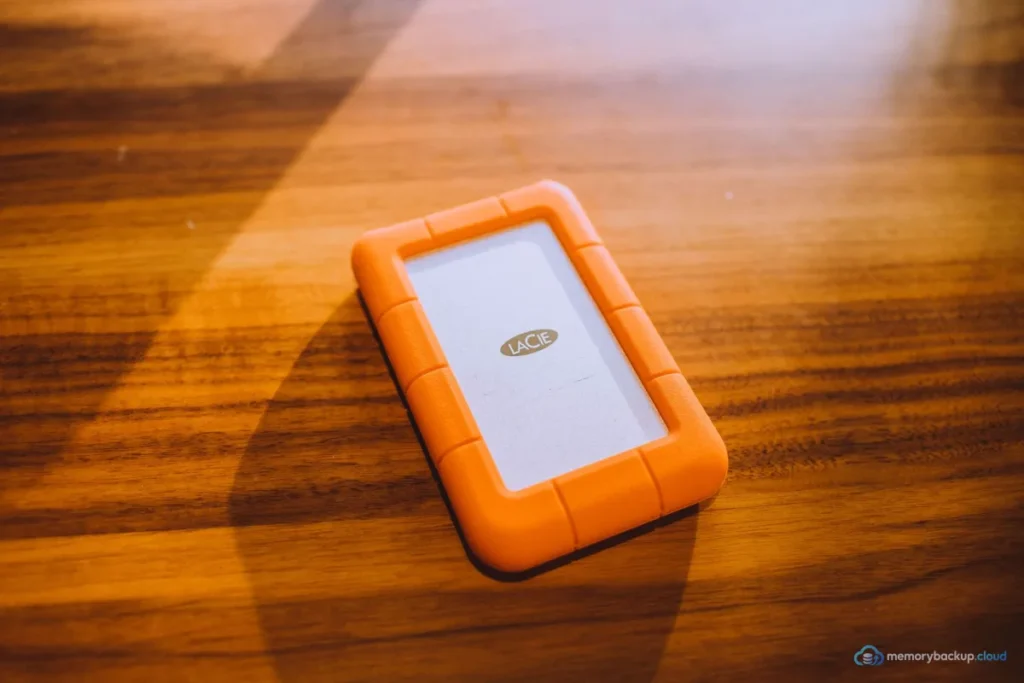
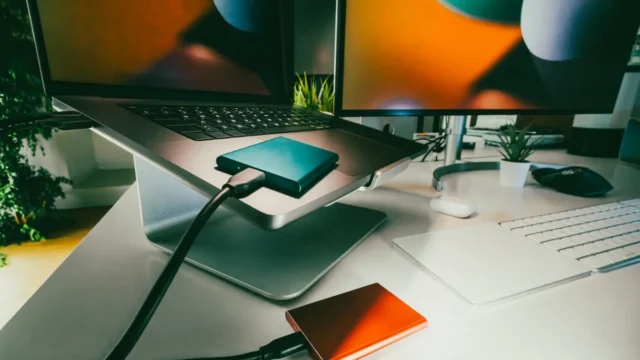
Modern iPhones and Android phones with USB-C can often copy files directly to a portable SSD through the Files app. SSDs are fast and durable. They suit people with hundreds of gigabytes of video.
A computer
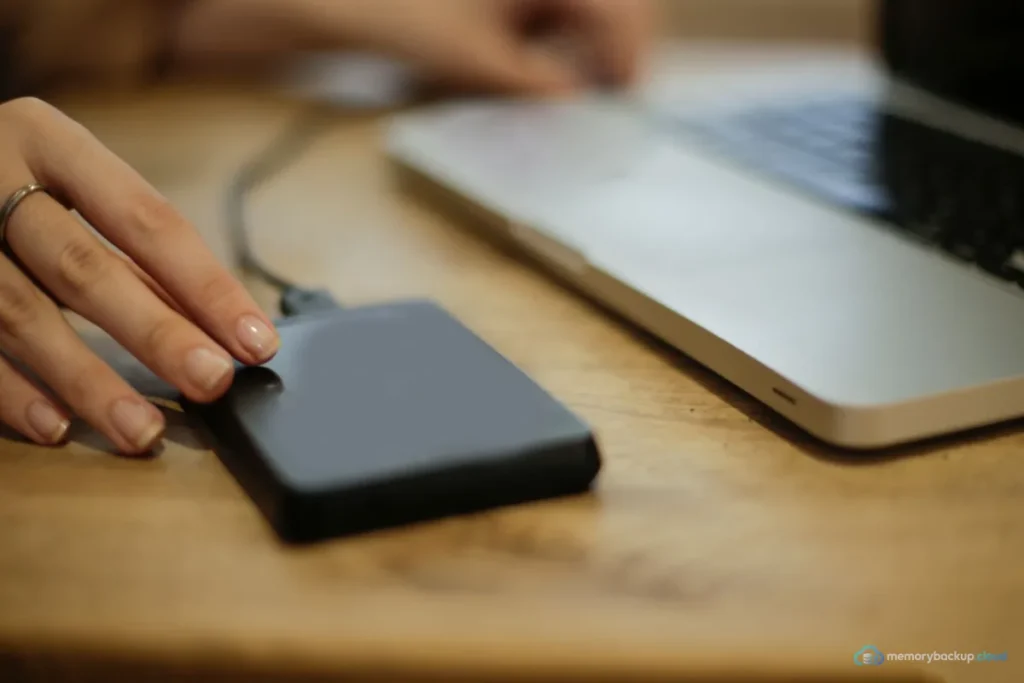
If you own a computer, it is free phone backup storage. iPhones can save a full encrypted backup to a Mac or PC. Android phones can copy photos and files over USB. See phone to computer.
Grab the free one-page 3-2-1 checklist so you can confirm every copy, every schedule and every restore test. It arrives by email in a minute.
Get the free checklistWhich two options should you combine?
- Phone-only user: cloud plan plus a phone flash drive.
- Laptop owner: cloud plan plus a monthly cable backup to the laptop.
- Video creator: large cloud plan plus a portable SSD.
- Family: shared cloud plan plus one external drive on the family computer.
This pairing follows the 3-2-1 backup rule, with the phone, the cloud and the drive as your three copies.
What to check before buying a drive
Check the connector matches your phone, the companion app has good reviews, the drive supports your phone’s file system and the capacity covers twice your library. Also check whether the app can restore, not just copy.
For larger comparisons, see backup storage devices and photo backup drive.
How to use phone backup storage safely
- Copy to the drive monthly, after big events, and before phone upgrades.
- Label folders by date.
- Store the drive away from the phone, especially when travelling.
- Open a few files from the drive every few months.
For the complete method, return to the back up phone hub.
Frequently asked questions
What is the top pick for phone backup storage?
The top pick is a combination: a cloud plan such as iCloud+ or Google One for automatic daily backup, plus one physical copy. For the physical copy, choose a phone flash drive if you have no computer, or a portable SSD for large libraries.
How did you compare phone backup storage?
We compared options on capacity, cost, speed, automation and whether they work without a computer. Cloud prices came from Apple and Google’s official pages in October 2026. Hardware was compared by category rather than model, because specific products and prices change frequently.
Which option suits most people?
Most people do best with the phone’s own cloud plan, sized for their photos, plus a monthly copy to a computer or drive. That gives automatic protection and an offline copy without much effort or cost.
Can I back up my phone directly to an external drive?
Often, yes. Many USB-C phones can copy files to a portable SSD or flash drive using the Files app. Phone flash drives include apps that automate this. Full iPhone system backups still require a computer, but photos and files can go straight to a drive.
Is an SD card a good phone backup?
It is better than nothing, but not ideal. An SD card stays inside the phone, so it is lost or damaged along with it. Use the card as an extra local copy, and always keep a cloud backup or a separate drive too.
Our Start Here guide shows the three steps every setup needs, in plain English. Cannot find a guide for your phone, app or drive? Request a guide and we will write it.
Start hereSources

1 comment