This page contains affiliate links. If you buy through them we may earn a commission at no extra cost to you.
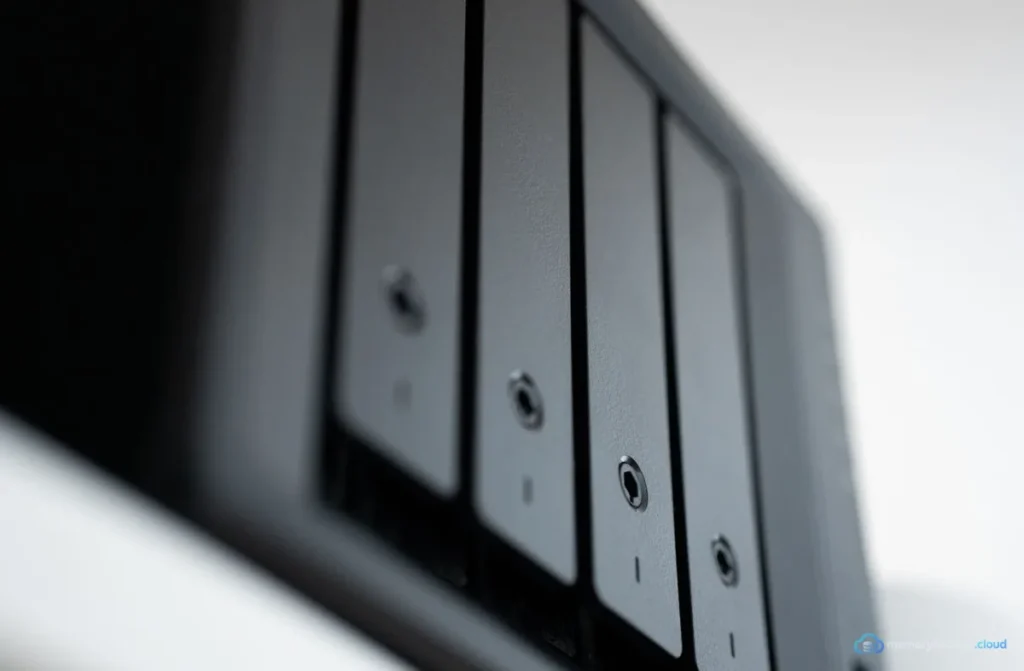
How do you back up a NAS to the cloud?
To back up a NAS to the cloud, use the NAS’s backup app, such as Synology Hyper Backup or QNAP Hybrid Backup Sync, to send versioned, encrypted copies to a cloud storage provider. Choose backup mode rather than sync, set client-side encryption, schedule nightly runs and test a restore. This gives your NAS an offsite copy.
A NAS feels safe because it often uses several drives. But RAID protects against one drive failing, not against fire, theft, ransomware or deleting the wrong folder. An offsite cloud copy closes those gaps.
| Risk | RAID on the NAS | NAS backup to cloud |
|---|---|---|
| One drive fails | Protected | Protected |
| Accidental deletion | Not protected | Protected with versions |
| Ransomware | Not protected | Protected with versions and isolation |
| Fire, flood, theft | Not protected | Protected |
| NAS hardware dies | At risk | Protected |
What do you need before you start?
You need admin access to the NAS, a cloud storage account that your NAS app supports and a good upload connection. Many people choose S3-compatible object storage, such as Backblaze B2, because NAS apps support it widely and pricing is per terabyte.
- A list of shared folders to protect, ranked by importance
- Your total data size and monthly growth
- A strong encryption password stored in a password manager
- Two-factor login on both the NAS and the cloud account
Step by step: Synology Hyper Backup example
- Install Hyper Backup from Package Center.
- Create a new data backup task.
- Choose your cloud destination and sign in with an access key.
- Select the shared folders and apps to include.
- Turn on client-side encryption and save the key file safely.
- Turn on backup rotation to keep multiple versions.
- Schedule the task nightly, outside work and streaming hours.
- Run the first backup and check the task log.
QNAP and other brands follow a similar flow in their own backup apps. Always choose backup mode, not one-way or two-way sync.
Grab the free one-page 3-2-1 checklist so you can confirm every copy, every schedule and every restore test. It arrives by email in a minute.
Get the free checklistCommon mistakes and fixes
| Mistake | Result | Fix |
|---|---|---|
| Using cloud sync instead of backup | Deletions and ransomware spread | Use a versioned backup task |
| Losing the encryption key | Backup cannot be restored | Store key file in two safe places |
| Backing up everything | Huge cloud bills | Prioritise irreplaceable folders |
| No two-factor on NAS admin | Attackers can delete tasks | Turn on 2FA, disable default admin |
| Never testing | Surprise during a disaster | Restore a folder each quarter |
How much will it cost?
Cost depends on the provider’s price per terabyte, the number of versions you keep and any download fees. Versioning adds storage over time. Start by protecting family photos and documents, then add media you could not replace.
Our cloud cost guide explains pricing models. For the bigger picture of home storage, see local, hybrid and NAS backup options and backup storage devices.
How to verify a NAS cloud backup
Use the backup app’s restore or explorer feature to browse the cloud copy. Restore one folder to a different location and open the files. Most NAS apps also support integrity checks. Schedule them monthly.
For the wider strategy, read the 3-2-1 backup rule and our computer backup hub.
Frequently asked questions
How long does a NAS backup to cloud take?
The first upload can take days or weeks for several terabytes, depending on your upload speed. A 50 Mbps upload moves roughly 22 GB per hour at best. After the first run, nightly incremental backups usually finish within hours because only changed data is sent.
What do I need before backing up a NAS to the cloud?
You need NAS admin access, a supported cloud storage account, a good upload connection and a safely stored encryption key. Decide which shared folders matter most, estimate their size and turn on two-factor authentication for both the NAS and the cloud account.
What are common mistakes with NAS cloud backup?
The biggest mistakes are using sync instead of versioned backup, losing the encryption key, backing up everything without prioritising and leaving the NAS admin account weakly protected. Not testing restores is another common problem that only shows up during a real emergency.
Is RAID a backup?
No. RAID keeps the NAS running when a drive fails, but it copies deletions, corruption and ransomware instantly across all drives. It also offers no protection against fire, theft or the NAS itself failing. You still need a separate, versioned backup.
Which cloud provider works with a NAS?
Most NAS apps support S3-compatible storage, such as Backblaze B2 and Amazon S3, plus some consumer services. Check your NAS brand’s list of supported destinations. Choose a provider with clear per-terabyte pricing and predictable download costs.
Our Start Here guide shows the three steps every setup needs, in plain English. Cannot find a guide for your phone, app or drive? Request a guide and we will write it.
Start hereSources