



Data Backup and Recovery: How to Restore Lost Files Fast
BLUF: Data Backup and Recovery: How to Restore Lost Files Fast starts with identifying what happened, stopping actions that may overwrite the missing data, and choosing the right recovery source. A recent backup usually provides the safest restoration path. Without one, recovery software or professional services may help, but results depend on the storage device and damage involved.
| Recovery Situation | First Action | Best Recovery Source | Key Risk |
|---|---|---|---|
| Accidental deletion | Stop writing new data | Recycle Bin, backup, or recovery software | Deleted data may be overwritten |
| Failed computer | Protect the original drive | System or cloud backup | Repeated boot attempts can worsen damage |
| Ransomware attack | Isolate affected systems | Clean offline or protected backup | Connected backups may also be affected |
| Damaged external drive | Stop unnecessary access | Verified backup or professional recovery | Mechanical damage can worsen with use |
| Lost cloud file | Check retention and trash areas | Cloud version history or backup | Retention periods may expire |
What Data Backup and Recovery Actually Means
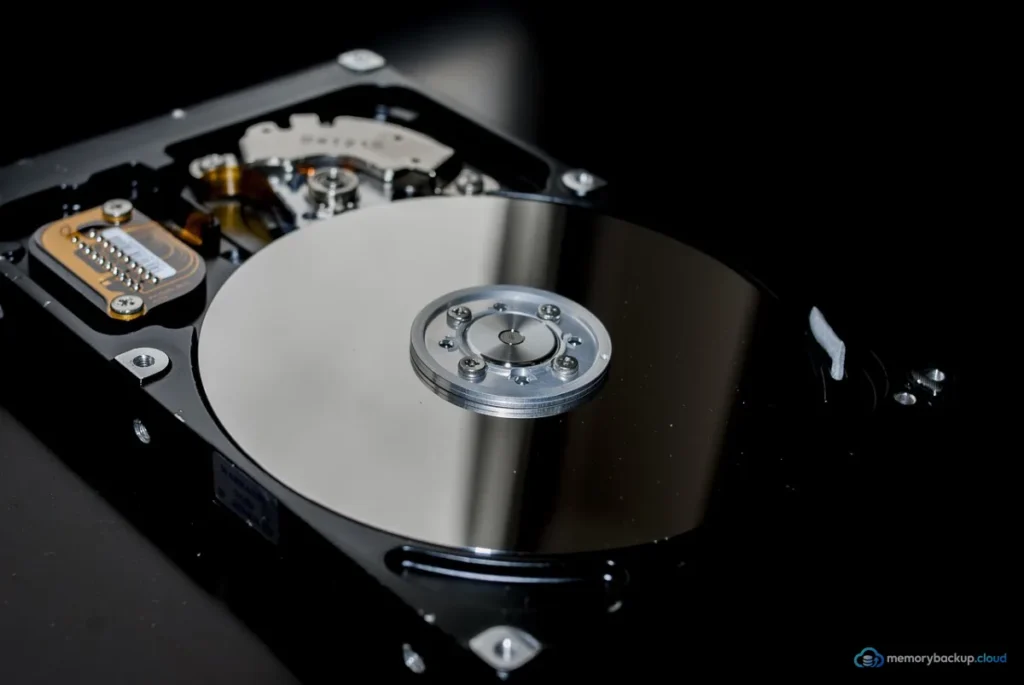
Data backup is the process of creating an additional copy of important information. Data recovery is the process of retrieving accessible information after deletion, corruption, hardware failure, malware, or another loss event.
These processes are related, but they are not identical. A backup creates a known recovery point before something goes wrong. Recovery uses that copy, or another available source, to restore information afterward.
That distinction explains why Data Backup and Recovery: How to Restore Lost Files Fast is primarily a preparation problem. Fast restoration depends heavily on what copies existed before the incident.
For example, deleting a document accidentally is different from losing an entire drive. The first situation may require a simple restore. The second may require a complete system recovery or specialist assistance.
Therefore, the first goal should not be speed alone. The goal is to restore the correct version without causing additional damage to the remaining data.
What Should You Do Immediately After Losing a File?
Stop unnecessary activity on the affected storage device and identify the simplest available recovery source. This reduces the possibility that new data will overwrite information that could otherwise remain recoverable.
- Stop downloading, installing, or copying files to the affected drive.
- Check the Recycle Bin or equivalent deleted-file location.
- Check recent backups and synchronized storage.
- Determine whether the problem affects one file, several files, or the entire device.
- Look for earlier versions of the missing document.
- Disconnect a device if malware or ransomware may be involved.
- Consider professional recovery when hardware failure is suspected.
Importantly, do not repeatedly experiment with unfamiliar recovery utilities on a physically damaged drive. Each additional operation can complicate later recovery efforts.
Data Backup and Recovery: How to Restore Lost Files Fast becomes much easier when the incident is classified correctly. Logical deletion, software corruption, malware, and physical damage require different responses.
How Do Backups Make File Recovery Faster?
A verified backup can restore a known copy without requiring the original storage medium to be reconstructed. This makes backups particularly valuable when a device has failed or files have become corrupted.
A backup can exist on an external drive, network storage, a dedicated backup service, or another controlled location. Some systems also maintain historical versions, allowing an earlier copy to be restored.
Versioning is especially useful when the current file still exists but contains unwanted changes. Instead of recovering a deleted file, you can restore an earlier version.
For example, imagine a spreadsheet was edited incorrectly on Monday and the mistake was discovered on Wednesday. A backup system with historical versions may allow the Monday version to be restored without reconstructing the document manually.
This is one reason Data Backup and Recovery: How to Restore Lost Files Fast should be understood as a lifecycle rather than a single emergency procedure.
Choose the Right Recovery Source
Start with the least complicated trusted copy before attempting advanced recovery. A recent verified backup is normally easier to use than reconstructing information from damaged storage.
- Recycle Bin: Useful for recently deleted files that have not been permanently removed.
- Cloud version history: Useful when earlier versions remain available.
- External backup: Useful when a separate drive contains a recent copy.
- System image: Useful for restoring an entire computer environment.
- Recovery software: Potentially useful when files were deleted without a usable backup.
- Professional recovery: Appropriate for severe physical or complex storage failures.
Data Backup and Recovery: How to Restore Lost Files Fast should therefore begin with source selection. The fastest path is often the copy that already exists, rather than the most sophisticated recovery technique.
How to Restore Files from a Backup
To restore files from a backup, locate the required recovery point, select the correct files, restore them to a safe destination, and verify that they open correctly. Avoid overwriting the original location until the recovered data has been checked.
- Identify the date and version you need.
- Open the backup or recovery interface.
- Locate the required folder or files.
- Select the appropriate recovery point.
- Restore the files to a separate destination when possible.
- Open several restored files to verify their integrity.
- Compare filenames, dates, sizes, and important content.
Verification matters because a successful restoration process does not automatically prove that every file is usable. A document may restore but remain corrupted if the source copy was already damaged.
For larger recoveries, restore a representative sample first. This can reveal permission, compatibility, encryption, or version problems before the entire dataset is replaced.
How to Recover Deleted Files Without a Backup
Deleted files may remain recoverable until their storage space is reused, but recovery is not guaranteed. The safest first step is to minimize activity on the affected storage and avoid saving recovered files onto the same device.
When a file is deleted, the operating system may mark its storage space as available rather than immediately removing every underlying piece of information. New data can later occupy that space.
Recovery software can sometimes identify remnants of deleted files and reconstruct usable copies. However, the results depend on the file system, storage technology, extent of overwriting, and nature of the deletion.
Solid-state drives can introduce additional complexity because storage-management mechanisms may make deleted information less recoverable. Consequently, Data Backup and Recovery: How to Restore Lost Files Fast should never assume that deleted data can always be reconstructed.
If the missing files are irreplaceable, professional assistance may be preferable to repeated consumer-level recovery attempts. This is particularly relevant when the storage device makes unusual sounds, disconnects repeatedly, overheats, or fails to appear consistently.
For general background on recovering information from damaged or inaccessible storage, see data recovery.
What Changes When the Drive Is Physically Damaged?
Physical drive damage should be treated differently from ordinary file deletion because continued operation can potentially worsen the problem. Stop unnecessary use and consider specialist recovery when the information has significant value.
Warning signs include clicking sounds from mechanical drives, repeated connection failures, severe overheating, visible damage, or a device that disappears during normal operation.
In these cases, installing recovery software directly onto the affected drive may be inappropriate. The safer approach is to preserve the original medium and work from a suitable copy when possible.
Data Backup and Recovery: How to Restore Lost Files Fast depends heavily on having a recoverable source. If the physical device becomes less accessible, the number of practical recovery options can decrease.
How Ransomware Changes Data Recovery
Ransomware recovery requires both containment and a clean recovery source. Simply restoring encrypted files from another connected location may fail if the backup was also accessible to the malicious software.
Ransomware is malicious software that can prevent access to files, commonly by encrypting them. A recovery strategy should therefore separate backup copies from everyday systems and protect them with appropriate access controls.
After an incident, affected devices should be isolated according to the organization’s security procedures. The environment should be assessed before restoring large quantities of data.
Clean backups can provide an important recovery route, but they should be checked before use. Restoring compromised systems without addressing the underlying security issue can recreate the problem.
In this context, Data Backup and Recovery: How to Restore Lost Files Fast is closely connected to backup isolation, recovery testing, and incident response rather than file restoration alone.

How to Build a Recovery-Ready Backup Strategy
A recovery-ready strategy combines multiple copies, appropriate separation, historical versions, and regular restoration tests. The objective is not simply to have backups, but to know that they can actually be used.
- Identify the files and systems that would be difficult to replace.
- Choose an appropriate backup frequency for how quickly information changes.
- Maintain more than one recovery source for critical information.
- Keep at least one backup sufficiently separated from everyday systems.
- Enable version history where appropriate.
- Protect backups with strong access controls.
- Monitor backup jobs for failures.
- Test restoration regularly.
Backup frequency should reflect the cost of losing recent changes. A file that changes several times each day may require more frequent protection than an archive that rarely changes.
Data Backup and Recovery: How to Restore Lost Files Fast is therefore influenced by recovery objectives. A person who can tolerate losing one day’s changes has different requirements from an organization that cannot afford that gap.
Why Backup Verification Matters
A backup should be considered useful only when its contents can be restored successfully. A completed backup job is not the same thing as a tested recovery process.
Verification can include checking whether expected files exist, confirming that backup timestamps are current, and opening selected restored files.
For important systems, restoration tests should cover realistic scenarios. Testing only individual documents may not reveal problems with permissions, applications, configurations, or complete system restoration.
Keep a simple record of what was tested and when. This creates an operational history and makes gaps easier to identify.
Data Backup and Recovery: How to Restore Lost Files Fast becomes more predictable when restoration has already been practiced under controlled conditions.
Common Mistakes That Slow Down File Recovery
The most common recovery mistakes involve continuing to use the affected storage, choosing the wrong recovery source, or failing to verify restored data. Avoiding these errors can preserve more recovery options.
- Continuing normal use: New files can overwrite deleted information.
- Saving recovered files to the same drive: This can interfere with additional recovery.
- Ignoring older backups: An earlier clean version may be more useful than a recent corrupted copy.
- Restoring everything immediately: A staged restoration can expose problems earlier.
- Skipping verification: Restored files may still be incomplete or corrupted.
- Keeping every backup permanently connected: Connected copies may share the same exposure as production data.
Another mistake is treating synchronization as a complete backup. Synchronization keeps locations aligned, but depending on the service and configuration, unwanted changes or deletions can propagate as well.
How Long Does File Recovery Take?
Recovery time depends on the amount of data, storage performance, recovery method, device condition, and number of files involved. A few deleted documents can be handled quickly, while a large damaged drive may require substantially more time.
Restoring from a local backup can be faster than downloading a large archive over a slow connection. Conversely, cloud recovery may be convenient when local hardware has failed.
Physical recovery can take longer because specialists may need to diagnose the device before attempting extraction. Data Backup and Recovery: How to Restore Lost Files Fast should therefore distinguish between restoring an existing copy and reconstructing lost information.
How to Make Future Recovery Faster
The best way to accelerate future recovery is to reduce uncertainty before an incident occurs. Clear backup schedules, organized storage, version history, tested restoration procedures, and documented recovery steps all reduce decision time.
Use meaningful folder structures and consistent filenames for important projects. Keep critical information in locations covered by the backup system rather than scattered across unmanaged drives.
Also document where backups are stored and how restoration works. This is especially important when several people may need to recover information during an outage.
Data Backup and Recovery: How to Restore Lost Files Fast works best when the recovery process is designed before the loss occurs.
When Should You Use Professional Data Recovery?
Professional recovery is worth considering when the storage device has physical damage or the missing information is too important to risk with repeated experiments. It can also be appropriate when standard recovery tools cannot safely access the storage.
Before handing over a device, document the symptoms and avoid unnecessary attempts to repair it. If the device contains sensitive information, review the provider’s security and handling practices.
Professional recovery is not guaranteed. Severe damage, extensive overwriting, encryption issues, or storage degradation can limit what can be retrieved.
That limitation is important because Data Backup and Recovery: How to Restore Lost Files Fast should remain realistic. No recovery method can promise successful restoration in every data-loss scenario.
FAQ: Data Backup and Recovery
What is the fastest way to restore a lost file?
The fastest method is usually restoring the file from a recent, verified backup or available version history. First check the Recycle Bin and backup locations. If no copy exists, minimize use of the affected storage before attempting recovery software, especially when the missing file is important.
Can permanently deleted files be recovered?
Sometimes, but recovery is not guaranteed. Deleted information may remain on storage until its space is reused. Continued device activity can reduce recovery chances. If no backup exists, stop writing new data and consider an appropriate recovery tool or professional service based on the device condition.
Are cloud backups enough for data recovery?
Cloud backups can provide a strong recovery source, but their usefulness depends on configuration, retention, versioning, security, and accessibility. Critical information should have an appropriate recovery strategy rather than relying on a single copy. Test restoration periodically to confirm that the expected files remain available.
What should I do if ransomware encrypts my files?
Isolate affected systems according to established security procedures and avoid restoring data immediately. Identify clean recovery points and confirm that backups were not compromised. Recovery should address the security incident as well as the missing files, because restoring an infected environment can expose restored information again.
How can I prevent future data loss?
Use scheduled backups, maintain multiple recovery copies, preserve useful historical versions, and separate important backups from everyday systems. Most importantly, test restoration rather than assuming backups work. A recovery plan should match how much data you can afford to lose and how quickly operations must resume.
Final Thoughts on Data Backup and Recovery: How to Restore Lost Files Fast
Data Backup and Recovery: How to Restore Lost Files Fast is ultimately about having a reliable path from loss to a verified copy. The most effective recovery process begins with restraint, accurate diagnosis, and a suitable recovery source.
When a recent backup exists, restoration can often be straightforward. When no backup exists, recovery becomes more uncertain, particularly after physical damage or extensive overwriting.
Therefore, prevention remains central. Maintain appropriate backups, preserve useful versions, separate critical copies, and test restoration before an emergency exposes weaknesses.
Data Backup and Recovery: How to Restore Lost Files Fast should never be treated as a promise that every missing file can return. Instead, it is a practical framework for improving recovery speed, reducing avoidable damage, and making important information easier to restore when something goes wrong.
Source / Reference: Data recovery
Author Bio: The content team focuses on practical technology guidance, data protection concepts, and clear explanations of digital recovery processes.



3 comments